
Virtual Lessons Procedures and Instructions
Please see these simple steps to join your weekly virtual lessons.
RVS uses Zoom Cloud Meetings for virtual lessons. You will need to access this service by either a desktop or laptop computer (with a camera and microphone) or your mobile device.
A meeting ID will be sent to your email address as well as sent in a text reminder on the day of your lesson.
You will use this meeting ID to access your weekly virtual lesson. All virtual lessons will use the same meeting ID.
NOTE: The following instructions are for students using either; a computer or mobile device. *Scroll down the page to see instructions II. For Those Using a Mobile Device.
Step 1. On your desktop or laptop computer, please enter in your browser window zoom.us/join. You will see the following page.
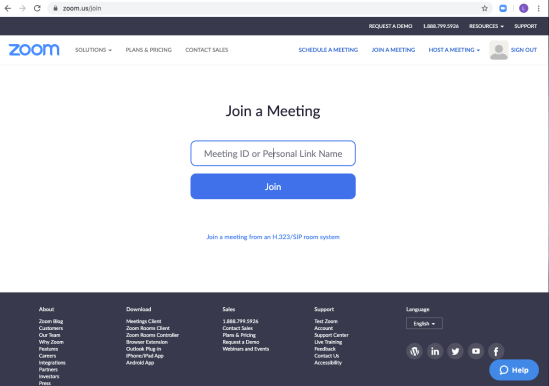
Step 2. Enter the meeting ID provided to you in your email or text. Everyone will have the same meeting ID. Once you enter the ID, you will see something like the following.

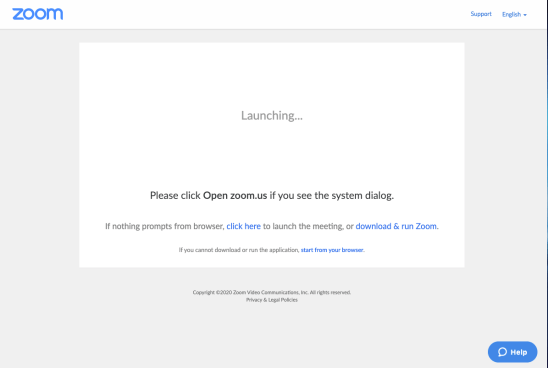
NOTE: You may see variations of this screen prompting you to download the Zoom app. If you choose not to download the Zoom app, either click here or try again. You will eventually get to the following screen (see below). Click on Start from your browser to continue using your browser.
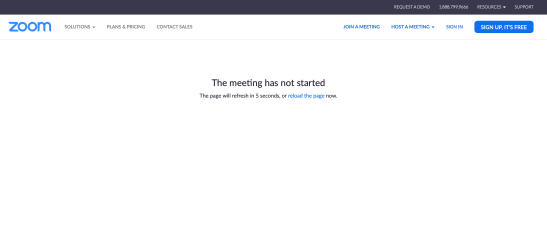
Step 3. If the virtual lesson has not yet begun, you will see the following screen.
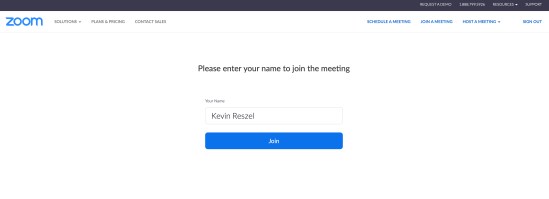
If a virtual lesson is already in session, you will be placed in the waiting room. You will need to enter your name and wait to be admitted to your lesson.

Step 4. At the conclusion of your virtual lesson, you will leave the lesson.
II. FOR THOSE OF YOU USING A MOBILE DEVICE …
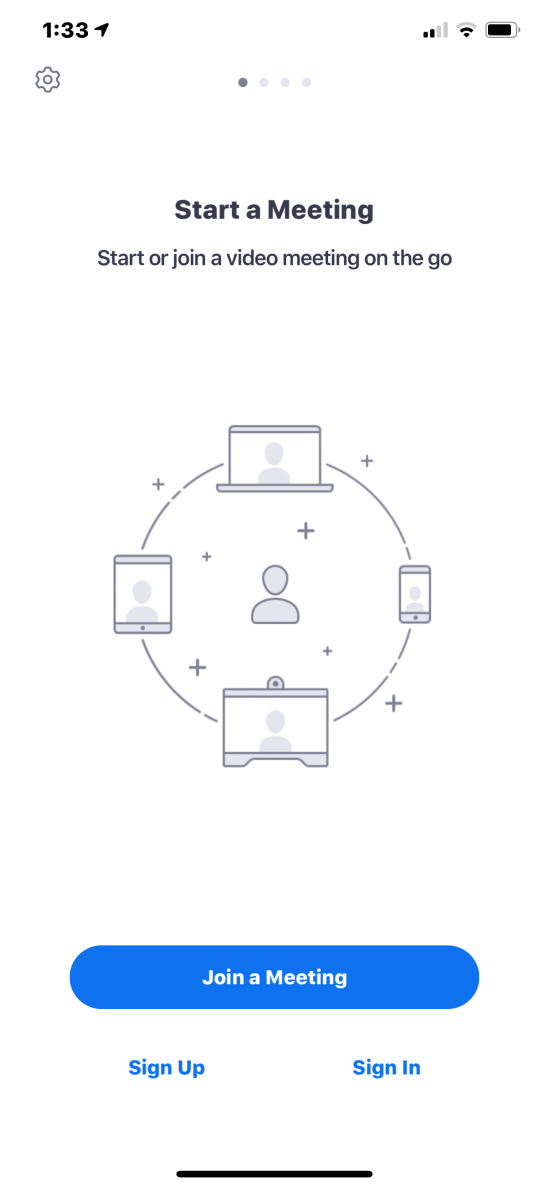
Step 3. Enter the meeting ID provided to you in your email or text. Everyone will have the same meeting ID. You will also enter your name. You do not need to choose any Join Options.

Step 4. You will select Join with video. You will be prompted with a video preview screen to ensure your mobile camera is functioning properly.

Step 5. If a virtual lesson is already in session, you will be placed in the waiting room.
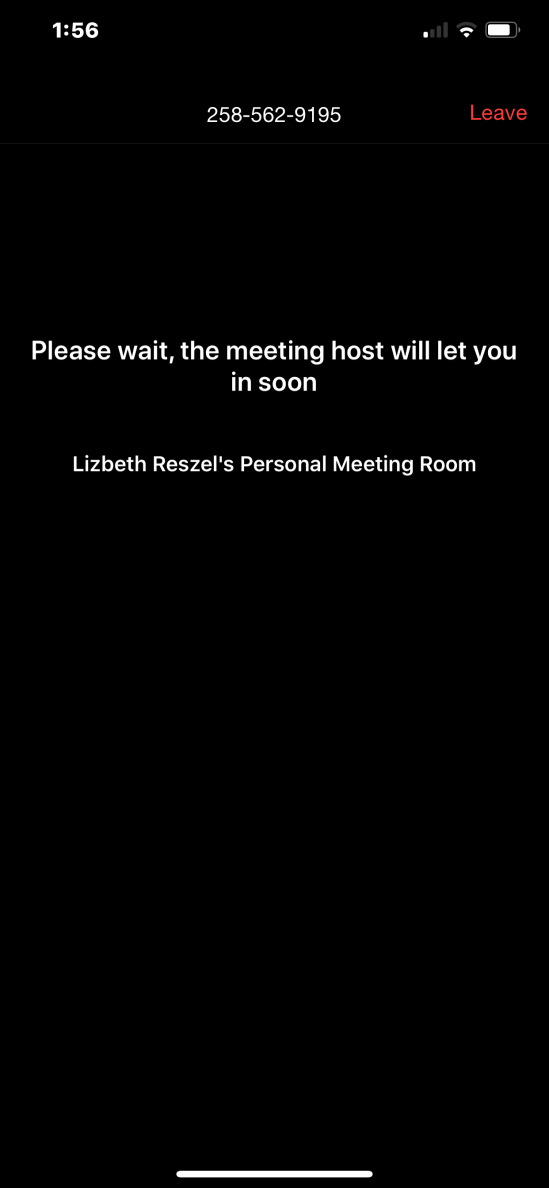
Step 6. Once your virtual lesson is over, you will leave the meeting.
 RESZEL VOICE STUDIO (RVS)